 OpenBanana
OPENBANANA FIELD GUIDE · OCTOBER 10, 2026
Change the background.
Keep the product in focus.
How to change a product photo background with AI, using a real reference edit and a prompt you can reuse.
Start with a clear product image, attach it as a reference, and describe both what should stay and what should change. In this example, we turn a cream studio scene into a pale mint one around the same blue bottle.
Follow the steps ↓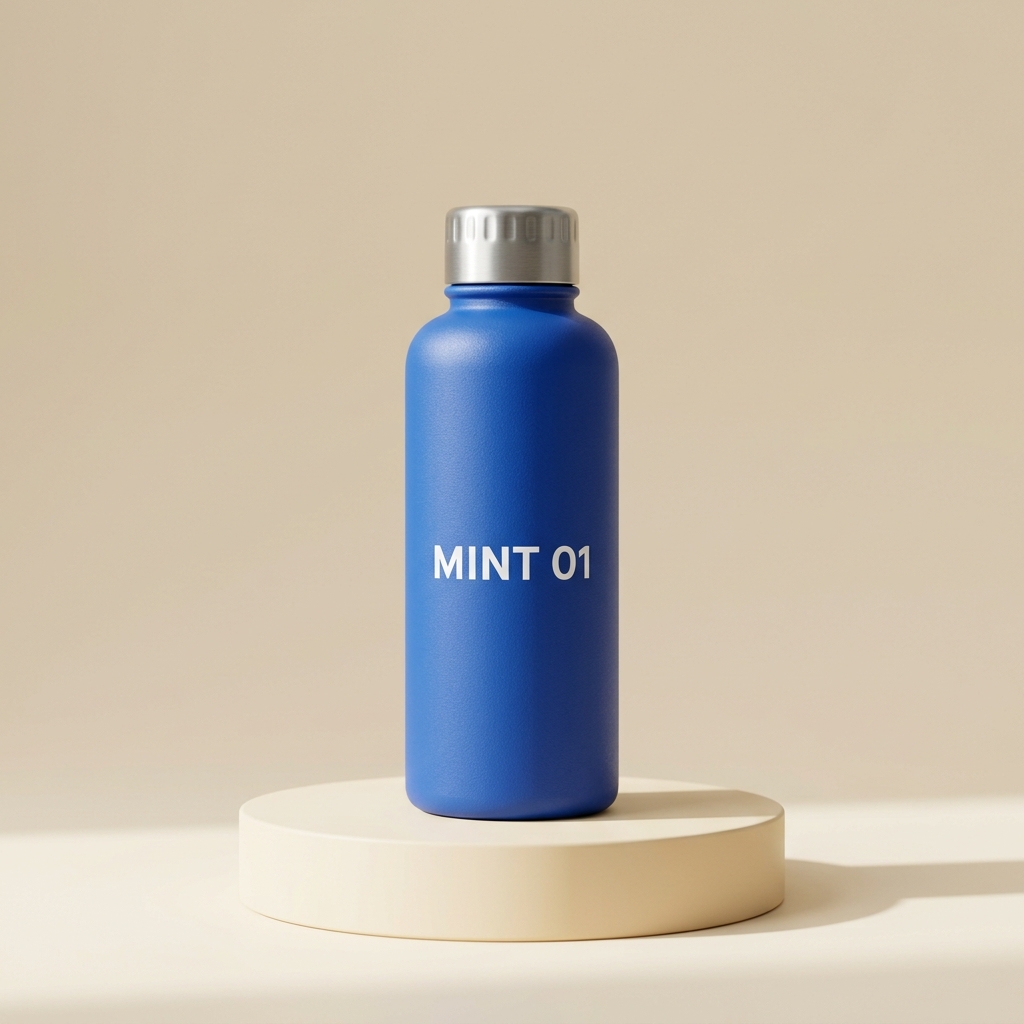
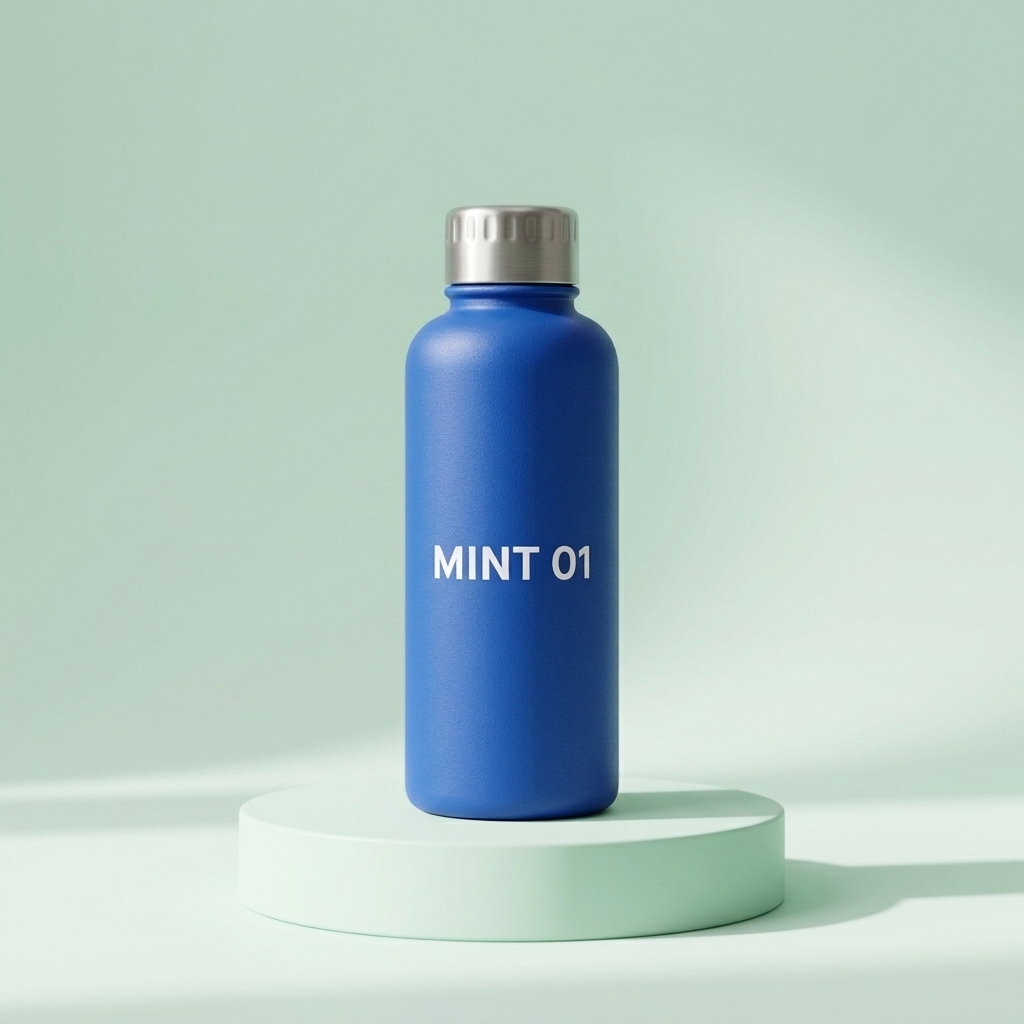
An AI-generated demonstration bottle, edited in OpenBanana on October 9, 2026. Both images are actual outputs from the studio. The edit used the first image as its reference, with 1K resolution and a 1:1 aspect ratio.
What a background edit does
A reference edit starts with an existing image. Your prompt tells the model which visible details to carry forward and which parts of the scene to change. For a product photo, those instructions can cover the backdrop, surface and lighting while naming the bottle, cap and label as details to keep.
This is useful when you already like the product’s angle and composition but want a different setting for a product card, a seasonal creative or a social post. Keeping the task focused makes the before-and-after comparison easier to judge.
How to change the background in OpenBanana
1. Choose a clear reference
Use a well-lit image with the whole product visible and enough detail to read its label. Attach one PNG, JPG or WebP under 5 MB. To follow this exact example, download the demonstration bottle.
2. Open the studio and attach the image
Go to the OpenBanana image editor, sign in, then add your file to the reference area. For a completed image in your own history, use its edit action to make it the next reference.
3. Name what stays, then what changes
For the blue bottle, we kept the product instructions specific and changed only the background, pedestal and lighting. This is the exact prompt used for the result above:
Keep the blue bottle, silver cap and exact "MINT 01" label from the reference image. Change only the background and pedestal to a soft pale mint studio scene with diffuse window light. Do not add props or extra text.
For your own photo, replace “blue bottle,” “silver cap” and “MINT 01” with the visible details of your product. Then replace “soft pale mint studio scene” with the setting you want.
4. Choose the shape and resolution
We used 1:1 for a square product image and 1K for this edit. The current studio price is 10 credits for 1K, 20 for 2K and 30 for 4K. Check the displayed credit cost, then select Generate image.
5. Compare the product before downloading
Look at the label one character at a time, then compare the cap, silhouette, colour and proportions. In our result, “MINT 01” remains readable, the bottle stays blue and the cap stays silver. The pedestal, backdrop and shadows shift to the new mint scene.
When the result is ready, select Download and save it to your device. Your completed task shows the available download window.
A prompt structure you can reuse
Use three short parts: the product to preserve → the scene to change → the details to avoid. Describe physical details rather than asking for a vague “better product photo.”
Keep the [product], [material or colour], [cap or packaging] and exact “[label text]” from the reference image. Change only the background and surface to [scene] with [lighting]. Do not add [unwanted props or text].
Change one scene description at a time. If you want a brighter background next, keep the product part of the prompt and revise the scene part. That gives you a clear comparison between attempts.
What to check in a product background edit
- Label: compare every letter, number and symbol at full size.
- Shape: compare the cap, shoulders, edges and base with the reference.
- Lighting: look for a believable contact shadow where the product meets its surface.
- Composition: leave the right amount of space for the product card or creative you are making.
Common questions
Can I use my own product image?
Yes. Upload one PNG, JPG or WebP reference under 5 MB, then describe the background change. You can also continue editing an image from your own completed tasks.
How do I keep the label in the prompt?
Quote its exact wording and name it among the details to preserve. For this bottle we wrote “exact ‘MINT 01’ label.” Compare that wording with the finished image before using it.
Can I try a background edit for free?
A new verified account receives 15 welcome credits, valid for 7 days. A 1K reference edit uses 10 credits, so you can try one with your own reference or the demonstration bottle. See current plans and credits for more images.